Your Reputation Filter is the branded landing page where customers go to rate your business. Setting it up properly ensures a seamless, professional experience that encourages positive reviews while capturing private feedback behind the scenes.
Customizing Your Reputation Filter
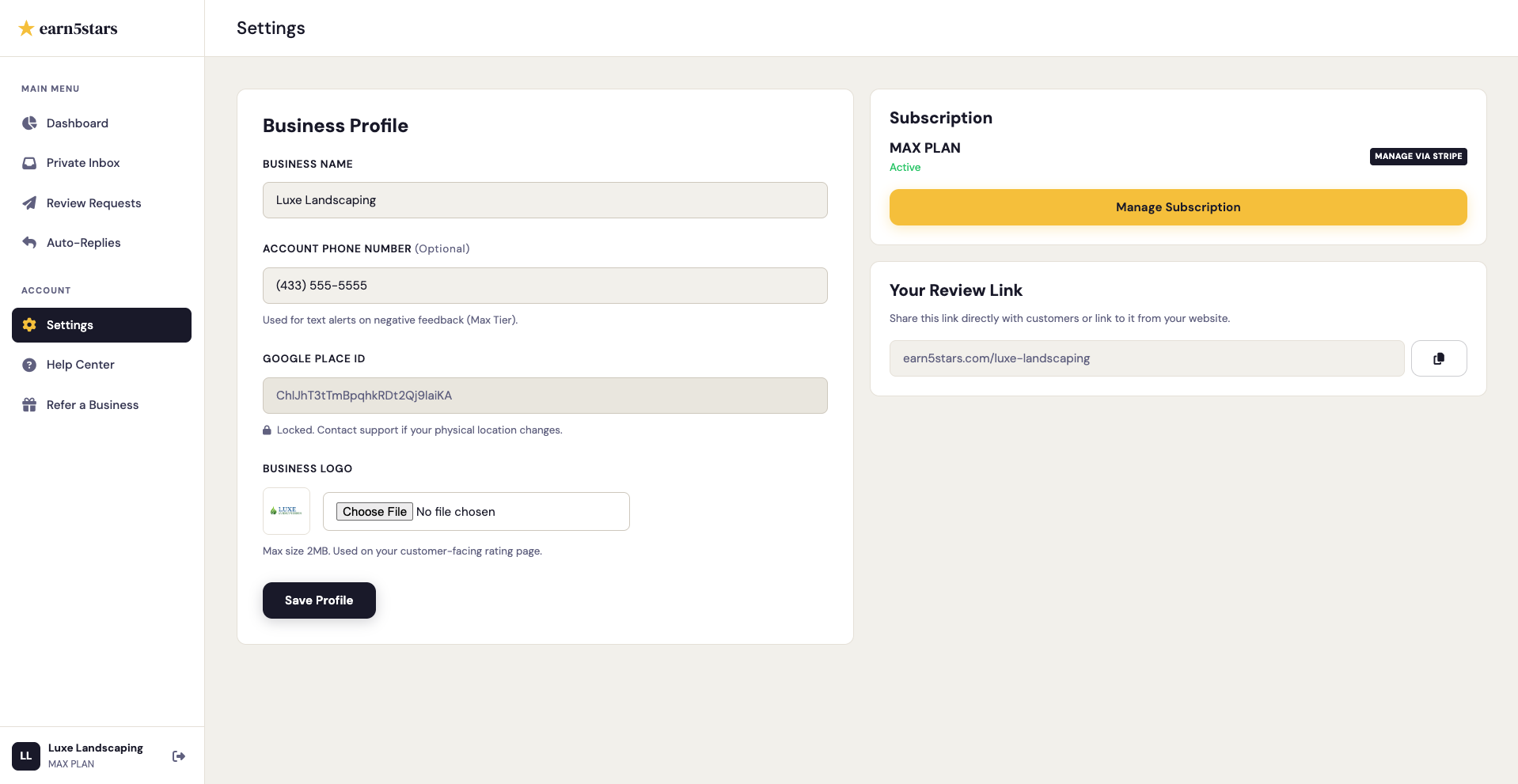
Before you start sending your link to customers, you should add your business logo so they immediately recognize the page.
- Log in to your earn5stars Dashboard.
- Navigate to the Settings tab in your sidebar.
- Locate the Business Profile section.
- Click the Choose File button (ensure your image is under 2MB for the best performance).
- Click Save Profile at the bottom of the card.
Your Reputation Filter will instantly update to display your logo at the top of the branded reputation filter.
Finding Your Link
Once your page is branded, you are ready to start collecting reviews. You can find your unique link directly on your main dashboard or in Settings.
- Navigate to the Dashboard tab.
- Look for the Reputation Filter card on the left.
- Click the Copy Icon to instantly copy the URL to your clipboard.
Sharing With Customers
You can share your link with customers directly. If you are on the Growth or Max plans, you can utilize Smart Review Chasing and our system will do this for you. Since the link is permanent and never changes, you can share it anywhere!
- Personal Text or Email: Paste the link directly into a text message or email immediately after completing a job or appointment.
- Email Signature: Add a line like "How did we do? Leave a review here!" with your link attached to your standard email signature.
Pro Tip: Timing is Everything
The highest conversion rate for reviews occurs when you ask a customer within 3 hours of their service or purchase. Keep the link handy on your phone so you can text it to them before they even pull out of the parking lot.