Sending a review request immediately after a successful transaction or appointment is one of the most effective ways to boost your Google reputation. Your earn5stars dashboard allows you to send beautiful, branded SMS text requests in seconds.
Sending a Request
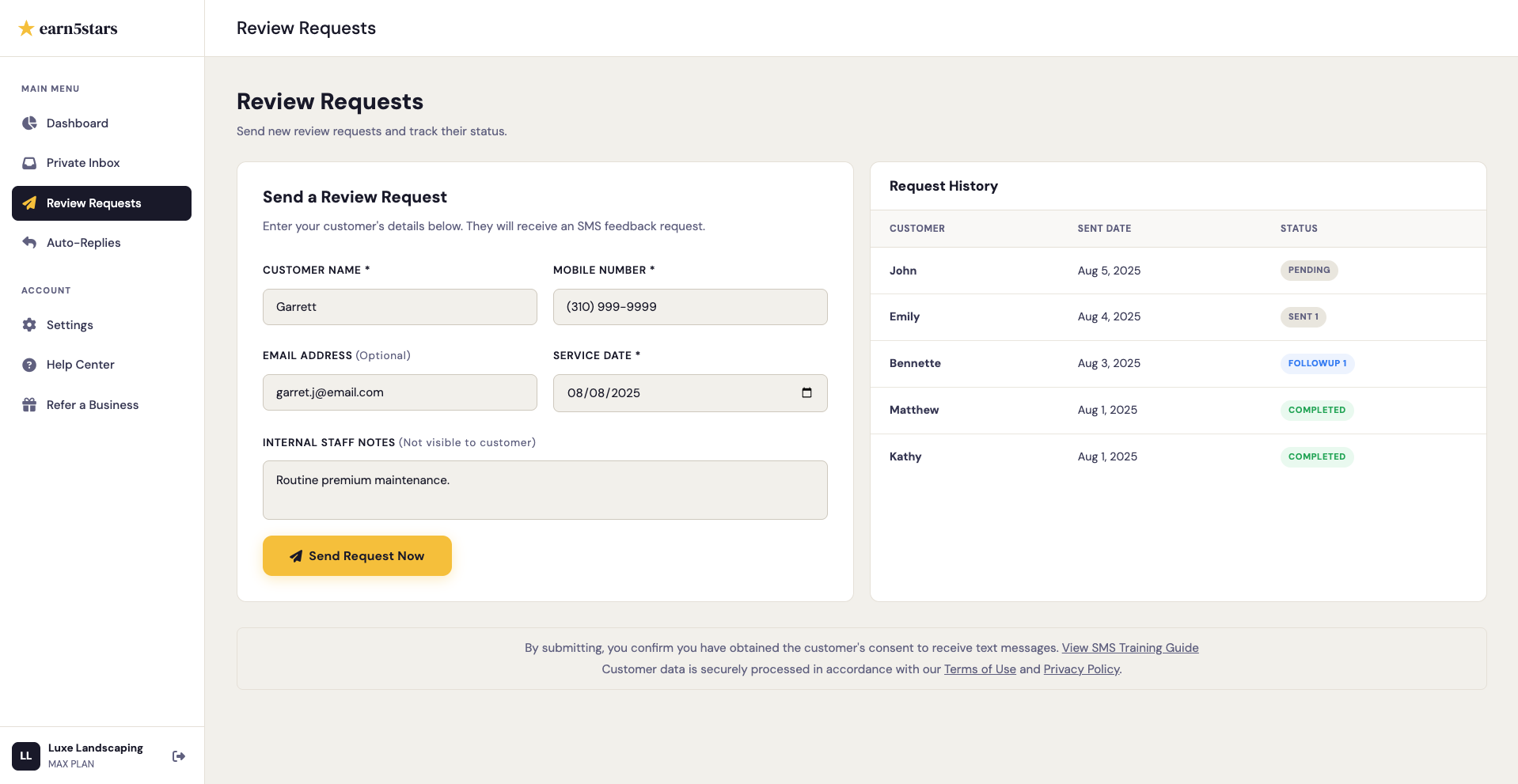
After you've completed service, you can queue up a review request directly from your dashboard's Review Requests panel.
- Log in to your earn5stars Dashboard.
- Navigate to the Review Requests tab in your sidebar.
- Enter your customer's First Name and Phone Number, Service Date, and any notes about the service in the form.
- Click the Send Request Now button.
What the Customer Sees
Once you click send, your customer will receive an SMS text message containing your unique branded link.
When they tap the link, they are taken directly to your branded Reputation Filter landing page where they can rate their experience. Because the link is uniquely tied to that specific customer, your dashboard will automatically update their status from "Pending" to "Completed" the moment they submit a rating.
Pro Tip: Smart Review Chasing
Users on the Growth and Max plans have access to Smart Review Chasing. If a customer doesn't click your link, our system will automatically send a polite, friendly follow-up text to ensure you don't miss out on the review.
Troubleshooting Failed Sends
Common reasons for delivery failure if a customer does not receive a review request:
- The phone number provided is a landline.
- The customer has marked unknown numbers to filter to their spam inbox in Messages.
- The customer has previously replied "STOP" to promotional SMS messages.