To fully utilize the Auto-Replies feature on the Max plan, you must grant our system permission to post responses on your behalf. By inviting earn5stars as a "Manager" on your Google Business Profile, our AI can draft personalized replies to your reviews, which you can then approve and publish with a single click directly from your dashboard.
Safe and Secure Access
Granting "Manager" access allows our system to read and reply to reviews. It does not give us ownership of your profile, nor can we delete your profile or transfer ownership to anyone else.
Step-by-Step Connection Guide
Follow these steps carefully to ensure the invitation is sent to the correct integration address.
-
Navigate to your Google Business Profile.
Make sure you are logged into the Google account that currently owns or manages your business listing. Go to business.google.com.
-
Click your Business.
If you manage multiple locations or businesses, select the specific location you are connecting to your earn5stars dashboard from the list.
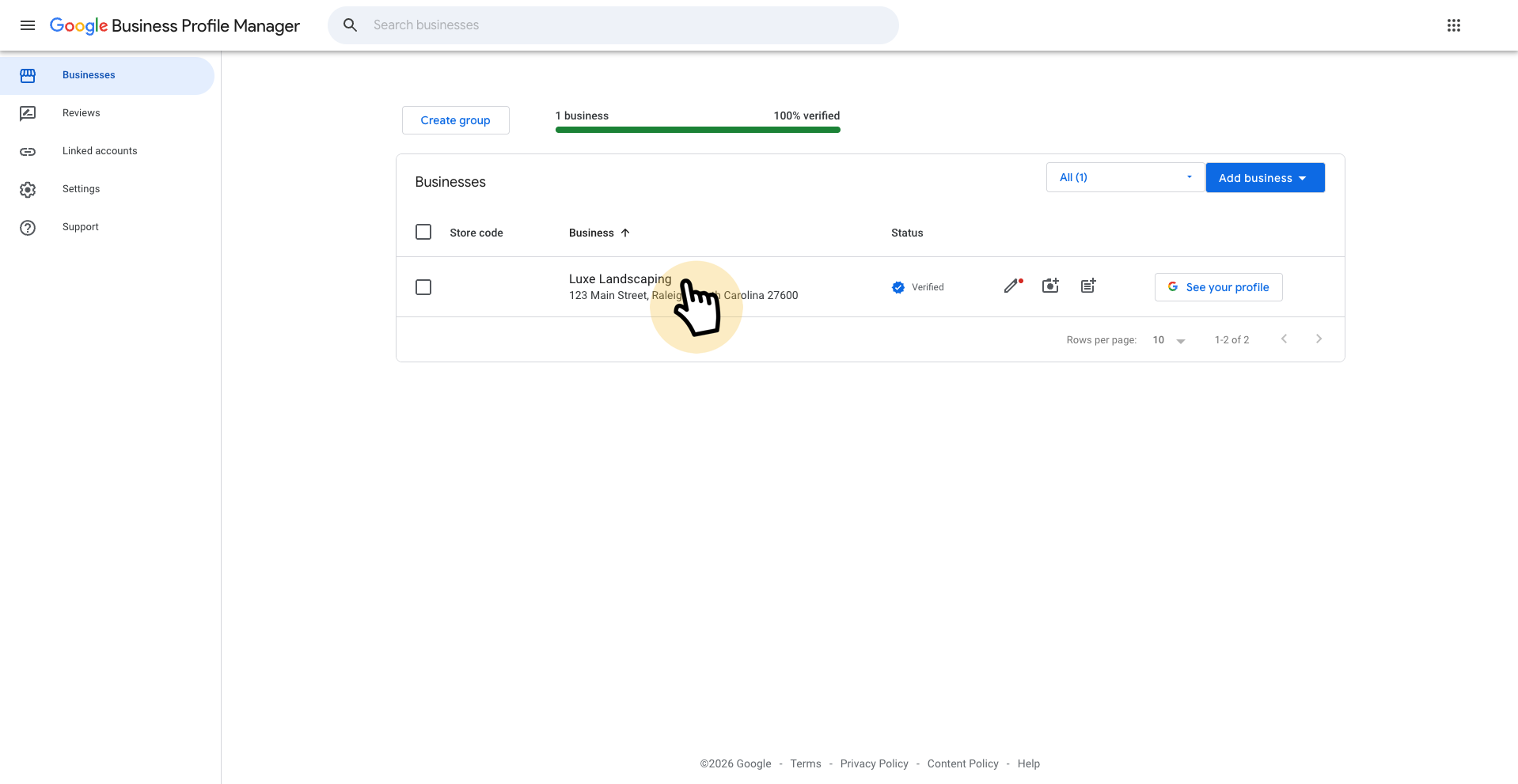 Select the specific location you want to connect.
 -
Open your Business Profile Settings.
On your business management dashboard (which usually looks like a Google Search results page), click the three vertical dots ( ⋮ ) menu located to the right of your business name, then select Business Profile settings from the dropdown.
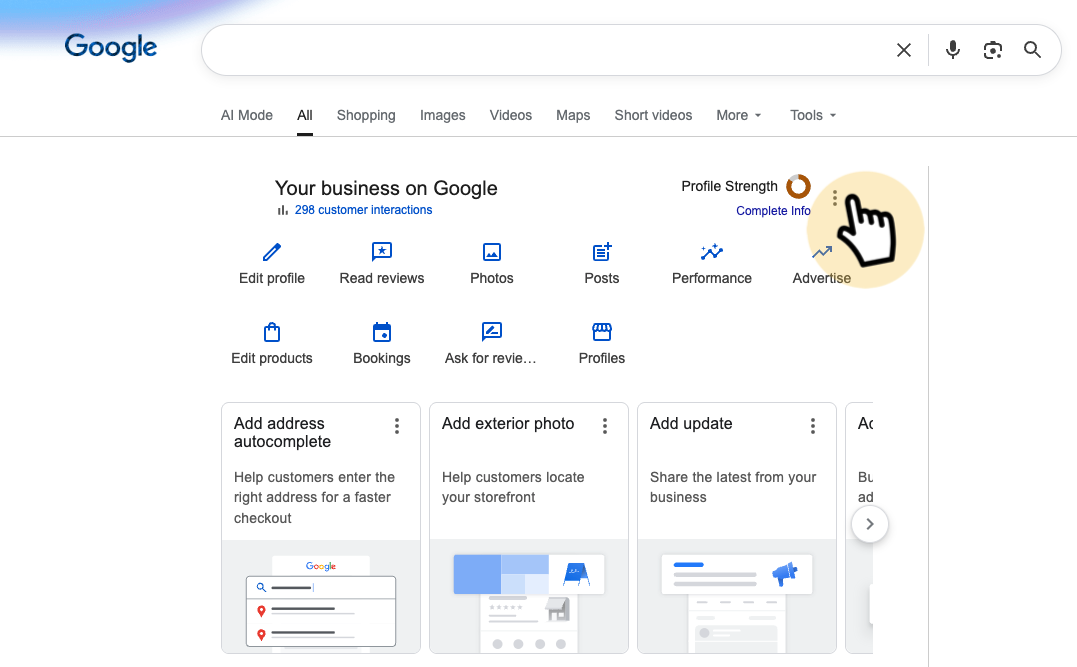 Click the three dots (⋮) and choose Business Profile settings.
 -
Access the People Menu.
In the settings popup, click on People and access to view who currently has permission to manage your profile.
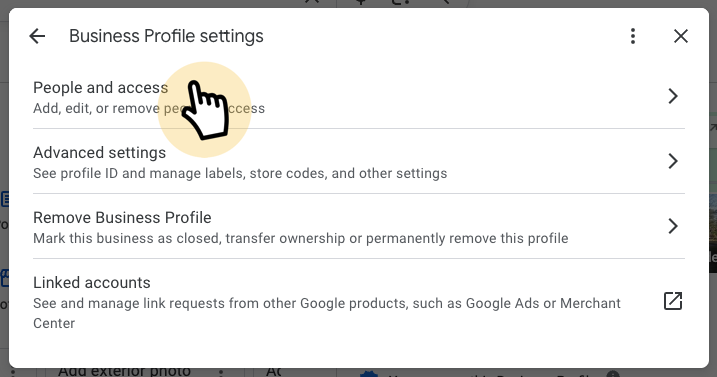 Click on People and access.
 -
Initiate a New Invitation.
Click the Add button (or the "Invite new users" option, depending on your device) to bring up the invitation form.
 Click Add to invite a new manager.
 -
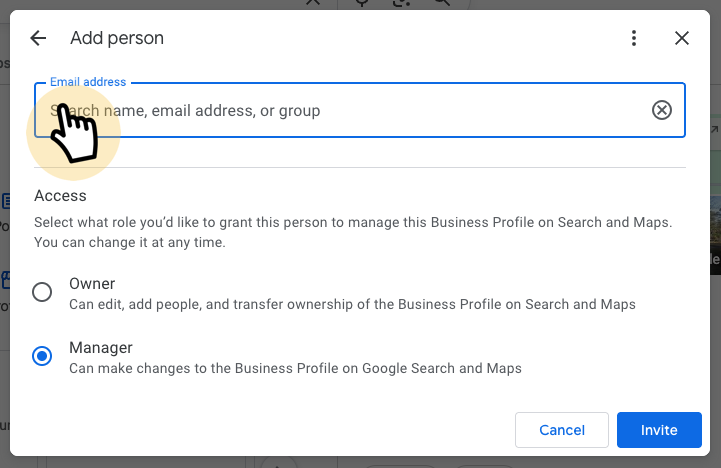
Enter the Integration Email Address.
Copy the secure email address below and paste it directly into the email address field on Google.
connect@earn5stars.comCopy -
Select the Manager Role and Invite.
Below the email field, Google will ask you to assign a role. Select Manager. Once selected, click the blue Invite button at the bottom of the window.
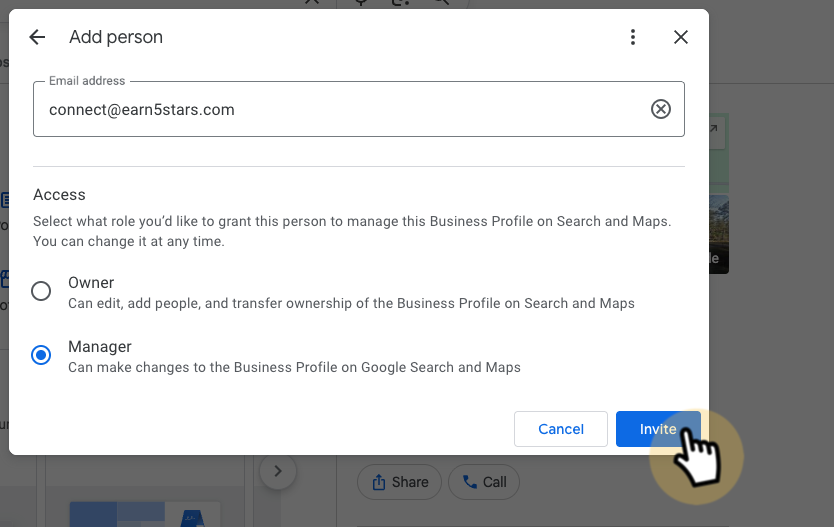 Select Manager as the role and finalize the invitation.
What Happens Next?
Once you click "Invite," Google will send a notification to our secure servers. Our system automatically accepts these invitations, but it can take up to 24 hours for Google's API to fully synchronize the connection.
You can check the status of your connection at any time by navigating to the Auto-Replies tab in your earn5stars dashboard and clicking "Verify Status." Once connected, your dashboard will immediately begin pulling in your pending reviews so you can start replying!